
Enter it once, it's in every app
Your business name, address, contact details, logo, colours and tax numbers are kept once for every Nextia app. Change them in any app, and the others use them too.
- 9 steps
- About 2 min
- Checked against NextiaBusiness on October 28, 2026
The video is on its way. The step-by-step and written versions are ready now.
- 1
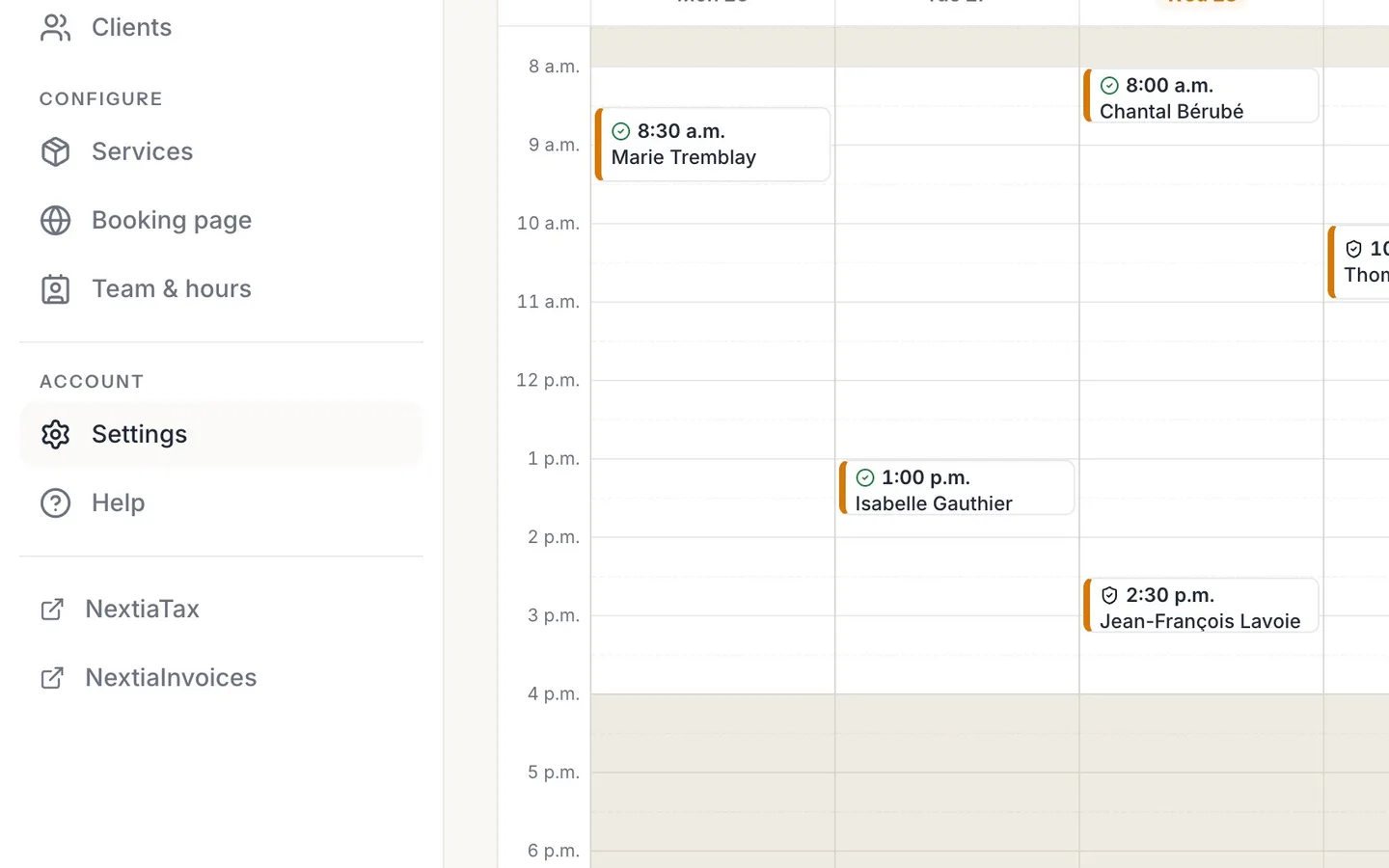
Select Settings in the menu.
In NextiaInvoices and NextiaTax, it's Business settings.
- 2
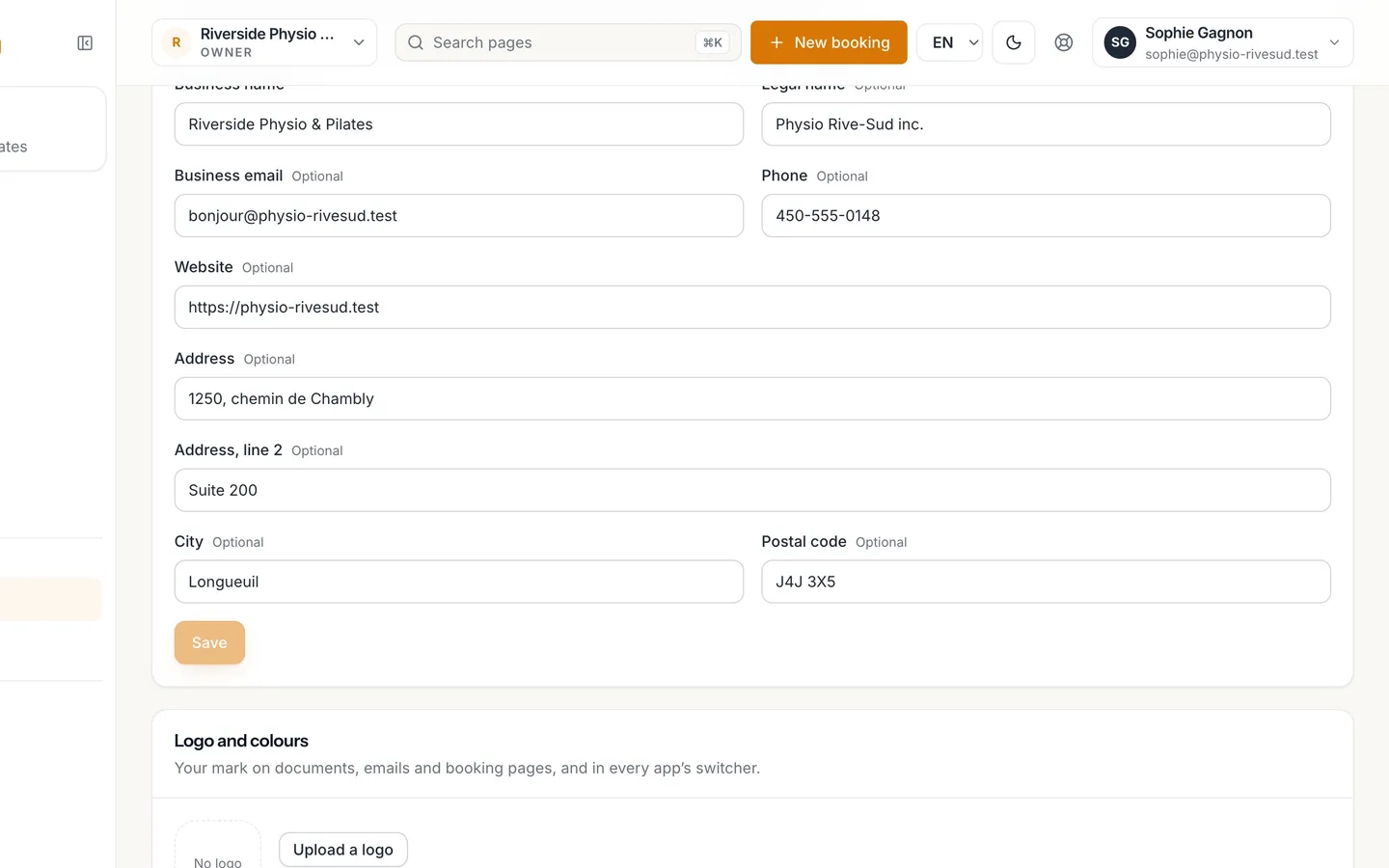
Business details are shared by every Nextia app.
They're shown on what you send clients.
- 3
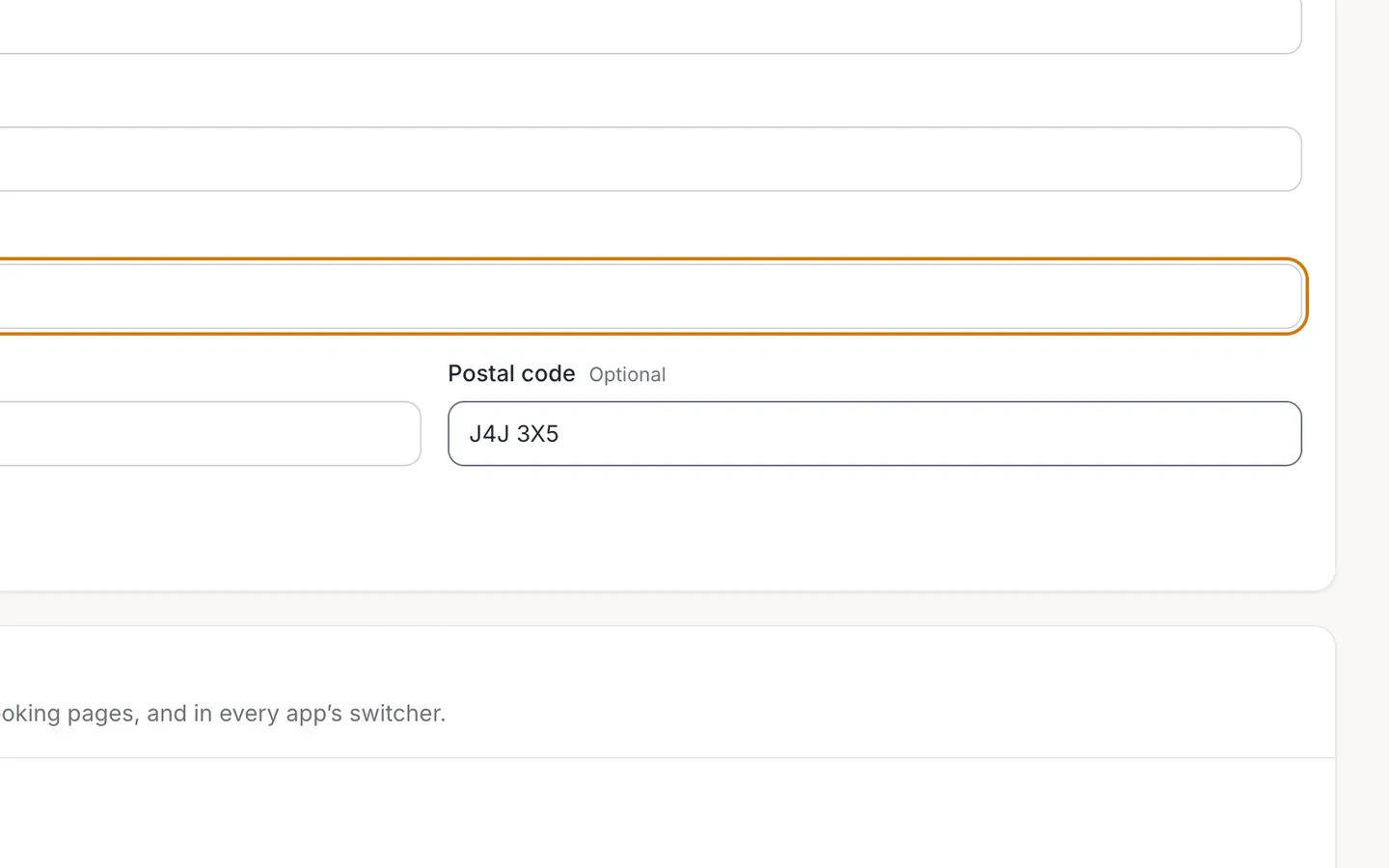
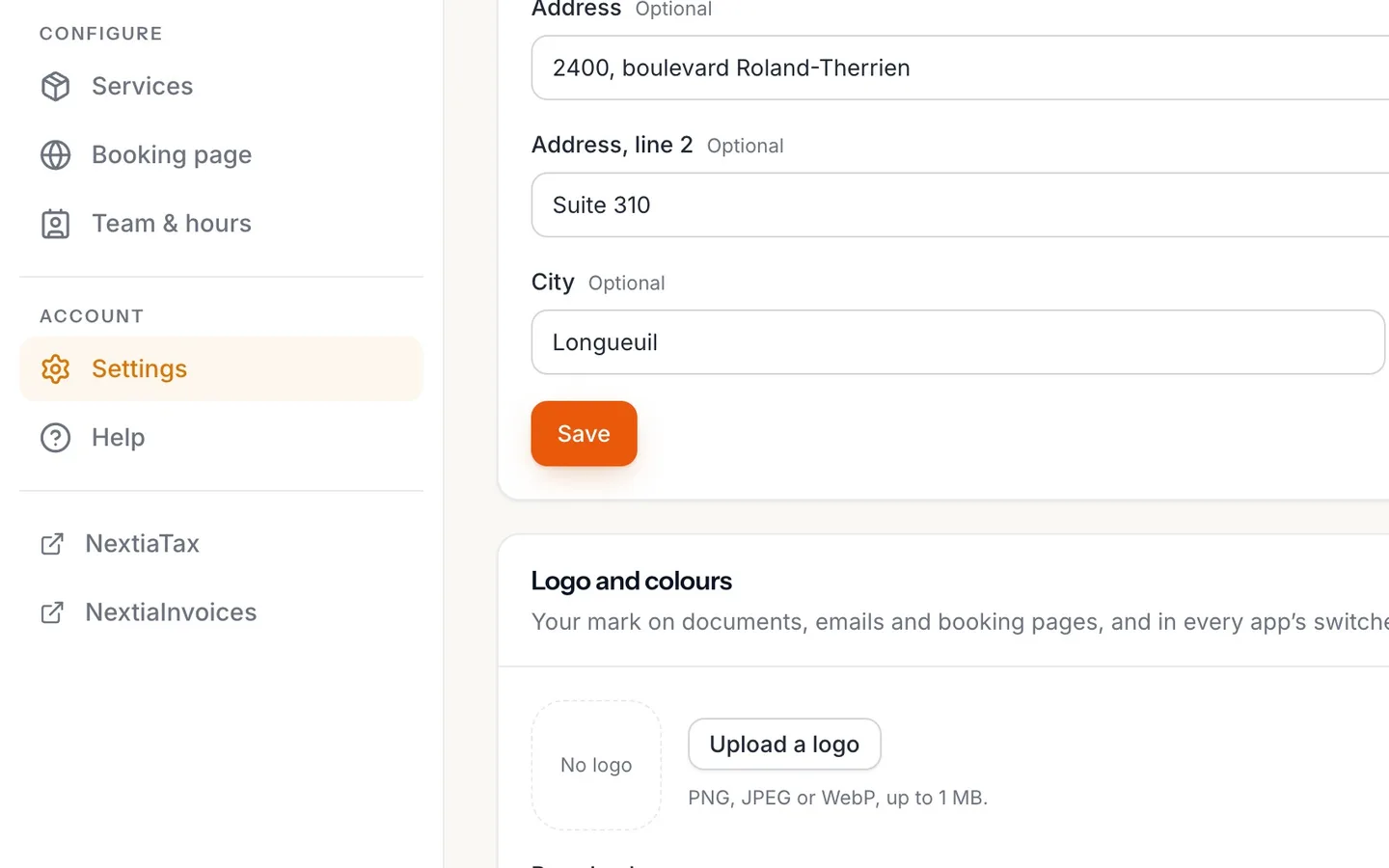
Type the new Address, Address, line 2 and Postal code.
- 4
Select Save.
- 5
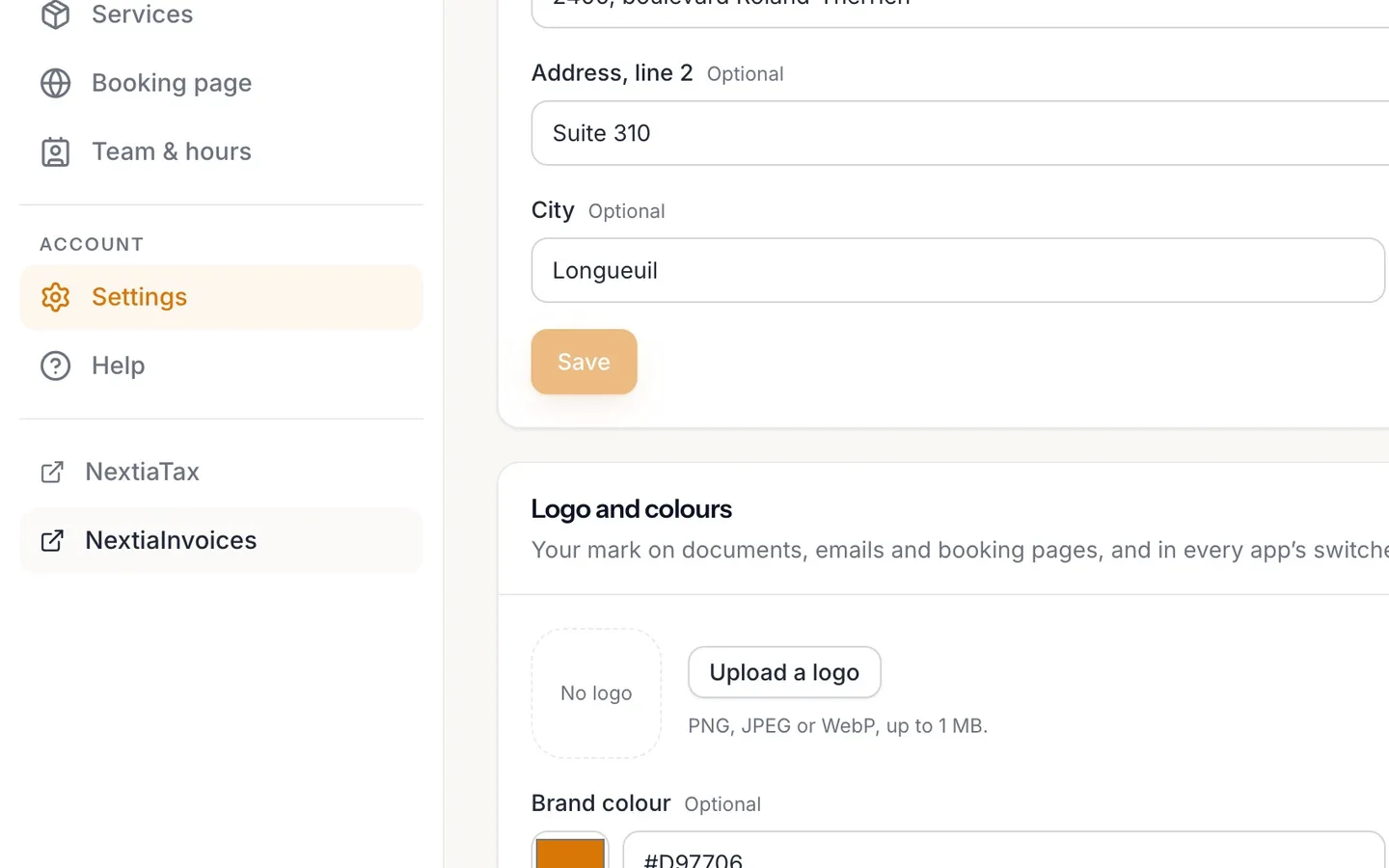
Open NextiaInvoices from the menu.
- 6
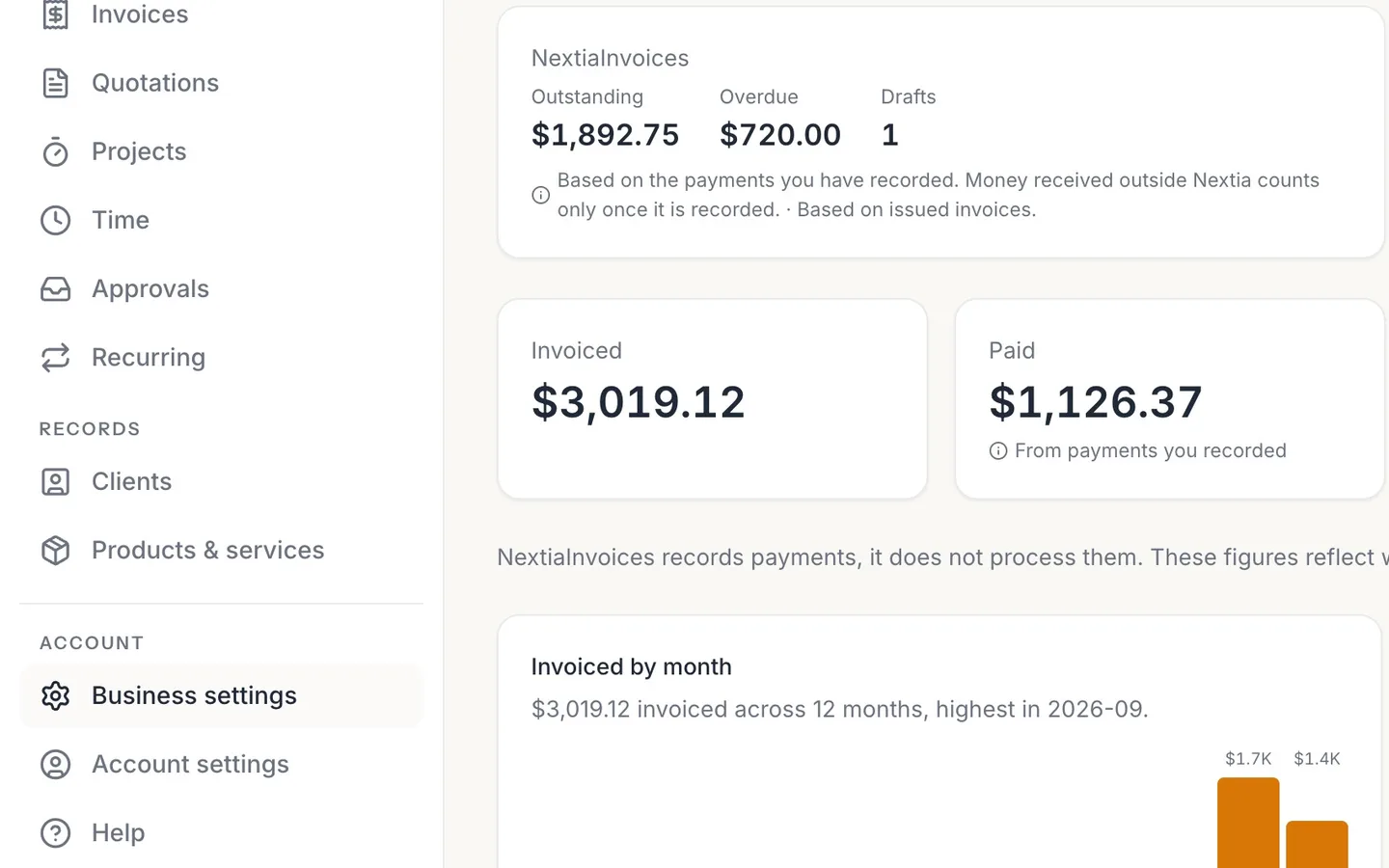
Select Business settings.
- 7
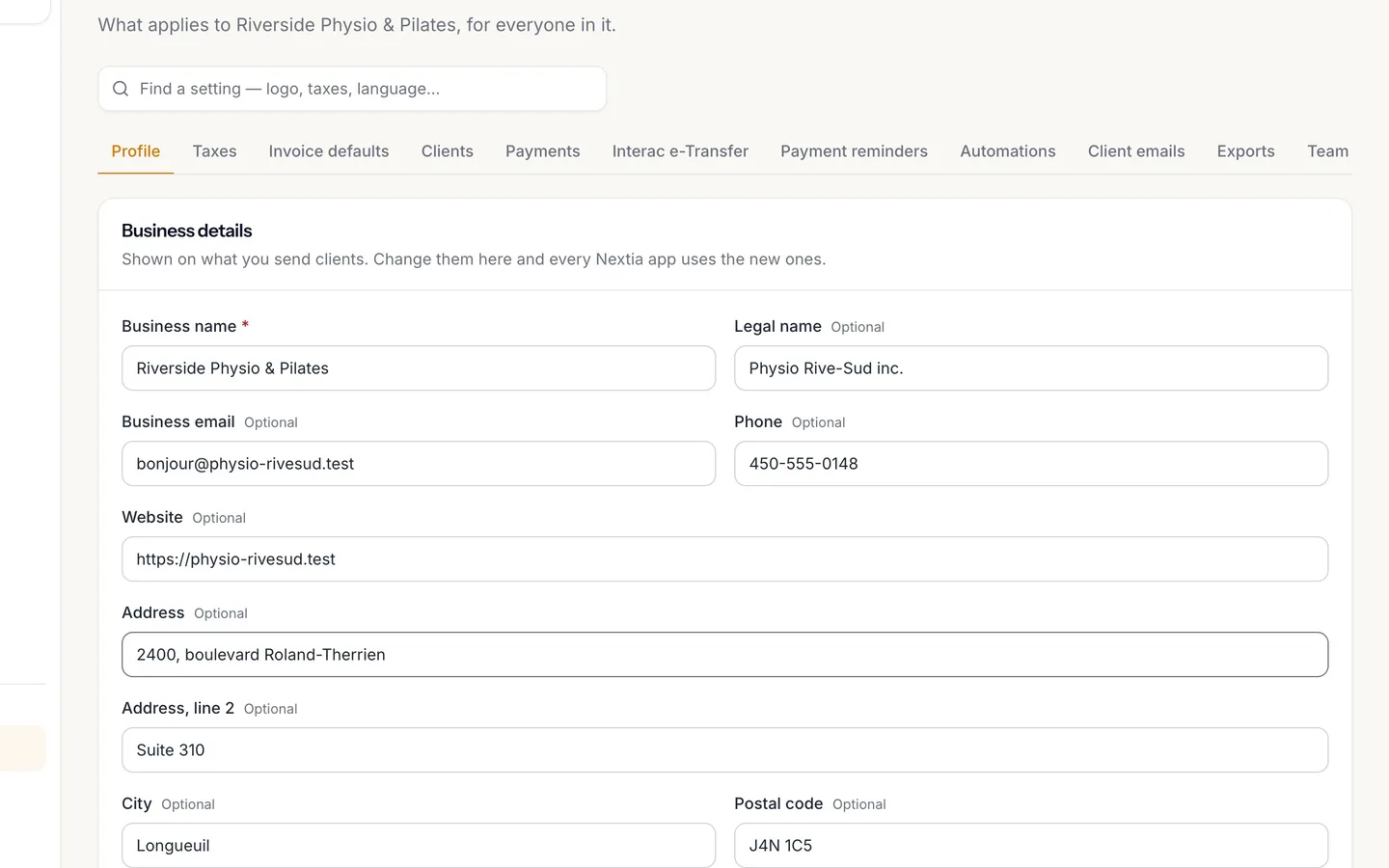
The new address is already there.
Nothing to type twice.
- 8
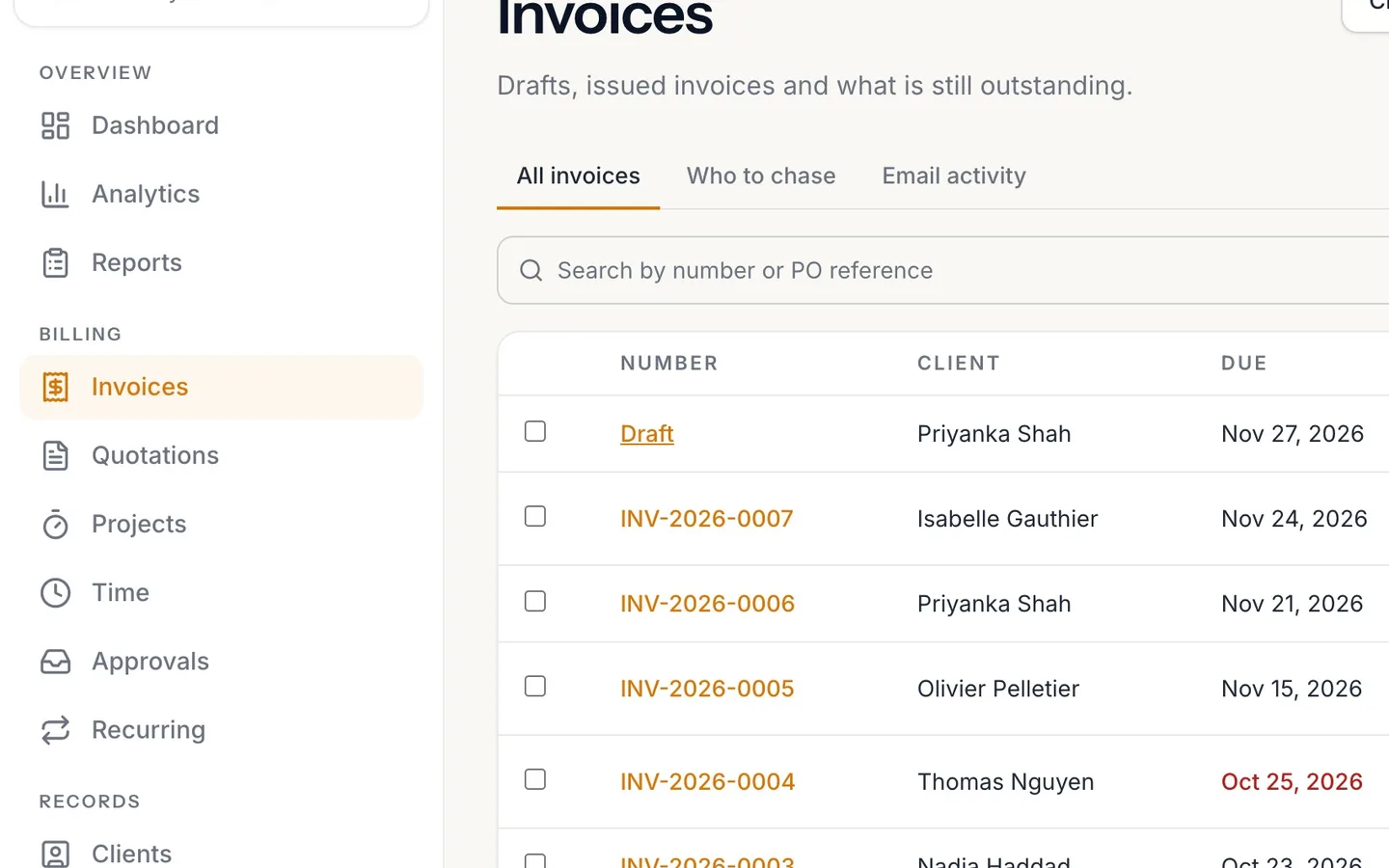
Open an invoice in Invoices.
Here, this week's draft.
- 9
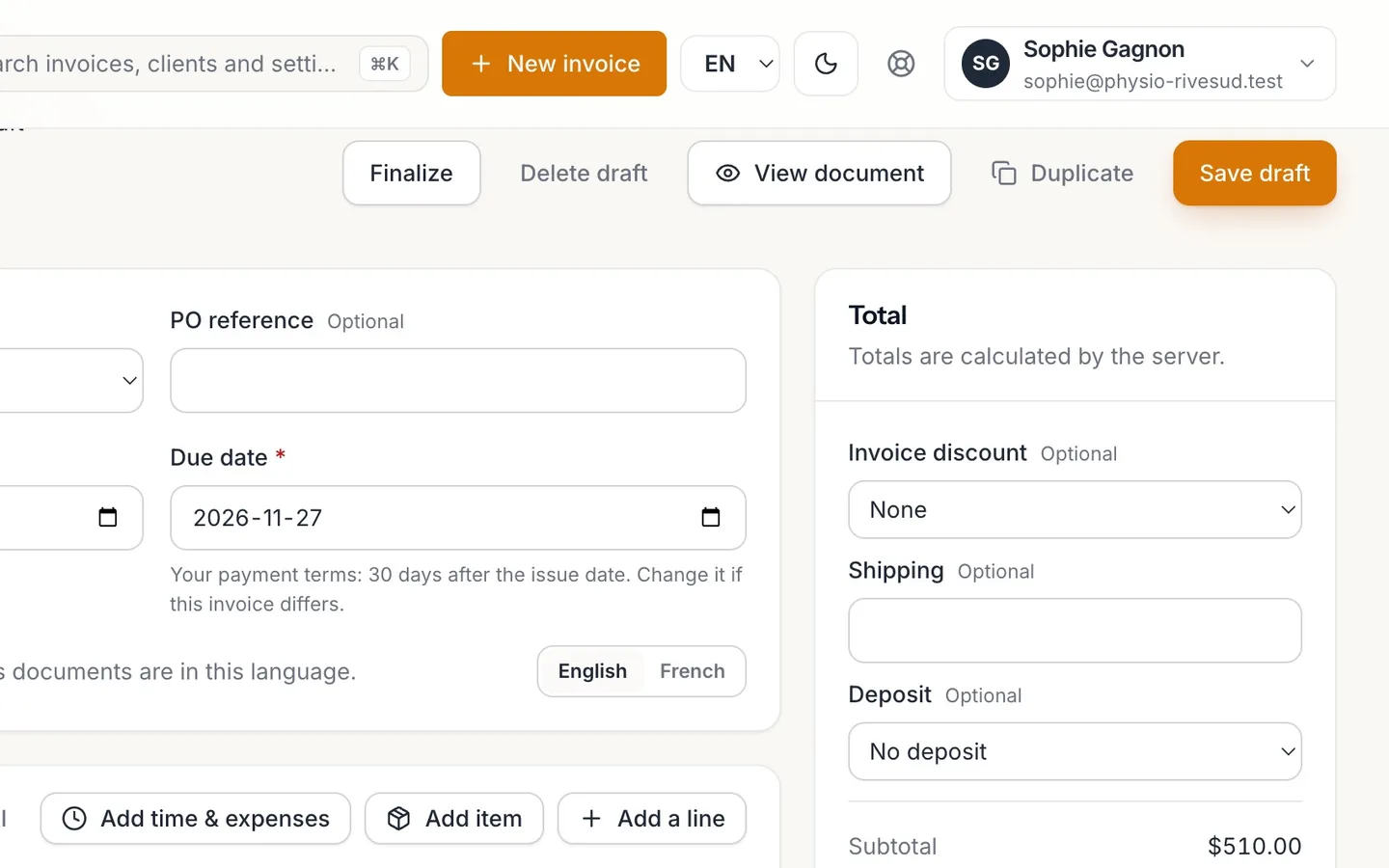
Select View document.
The next invoice your client gets has the new address.
Enter it once, it's in every app
Change your business address, contact details, logo or tax numbers in one Nextia app, and NextiaBooking, NextiaInvoices and NextiaTax all use them.
Before you start
Your business's name, address and contact details, its logo and colours, its region and its tax numbers are kept once for every Nextia app the business uses. You change them in whichever app you happen to be in, and the others use the new ones. This guide follows Riverside Physio & Pilates, which is moving to a bigger clinic: Sophie Gagnon changes the address in NextiaBooking, then finds it already in NextiaInvoices and on her next invoice.
What you need:
- The right role. Owners, admins and managers can change the business details, the logo and colours, and the region. Tax numbers and the email settings can be changed by owners and admins only. Everyone else can see these details but not change them.
- A business that uses more than one Nextia app, if you want to see the change carried across. With one app, the details work the same way; there's simply nowhere else for them to go.
Step by step
-
Open Settings
In NextiaBooking, select Settings in the menu on the left. It opens on Business › Profile, the first tab under the Business heading.
In NextiaInvoices and NextiaTax, the same page is under Business settings. It's the same screen in every Nextia app, with the same fields, because it's the same set of details.
-
Read the Business details card
The first card is Business details: "Shown on what you send clients. Change them here and every Nextia app uses the new ones." It holds:
- Business name (required): the name clients see.
- Legal name: the registered name, if it's different.
- Business email, Phone and Website.
- Address, Address, line 2, City and Postal code.
Below it, each group of settings has its own card and its own Save button:
- Logo and colours: "Your mark on documents, emails and booking pages, and in every app's switcher." Upload a PNG, JPEG or WebP logo up to 1 MB, and set the Brand colour and Accent colour as hex codes (# and six letters or digits).
- Region: Country (Canada or United States), Province or state, Business time zone ("Reminders, schedules and the business's 'today' run on it."), Currency and Language ("For clients who haven't chosen one.").
- Tax numbers: Business number, GST/HST number, QST number and PST number, "Printed on invoices and receipts where they apply."
- Email to clients: the Sender name client emails come from, and Replies go to, the address replies reach. A new reply address is confirmed with a six-digit code sent to it before it's used.
-
Type the new address
In Address, type the new street address. Put the suite or unit in Address, line 2, then change City if it's different and type the new Postal code.
Leave the other fields as they are.
-
Save the change
Select Save on the Business details card. The button stays unavailable until you've changed something, and reads Saving… while it works. When it's done, Saved appears.
The change is saved to your business, not to NextiaBooking alone. Nextia then tells every other app the business uses that its details changed, and each one takes the new address.
-
Open NextiaInvoices from the menu
Scroll to the bottom of the menu and select NextiaInvoices. It opens on the same business, with no second sign-in.
-
Open Business settings
In NextiaInvoices, select Business settings in the menu. It opens on Profile, the same Business details card you just saved in NextiaBooking.
-
See the new address already there
The new address, suite and postal code are already in the card. You don't type anything twice, and there's no copy to keep in step: both apps show the same details.
-
Open this week's draft invoice
Select Invoices in the menu and open the draft invoice you're working on, here this week's draft.
-
Preview the invoice
Select View document. Invoice preview opens: "This is the document your client receives. A draft is watermarked." The new address is at the top, in your business's details. The next invoice your client gets carries it.
What happens next
Every Nextia app the business uses now has the new details. In NextiaInvoices, drafts, and the emails and pages you send clients, show the current details each time they're drawn or sent. You have nothing more to do.
Invoices already issued keep the address they were issued with. An invoice records the business's details when it's finalized, so a reprint of an old invoice still matches what the client received. The logo and colours are the exception: they're always the current ones, so old invoices reprint on your new letterhead.
The usual next task is checking the rest of the page while you're there: your logo, your tax numbers, and who client emails come from.
If something goes wrong
Another app still shows the old address
Reload that app's page. Each app gets the change from Nextia shortly after you save, but a page that was already open shows what it loaded. If it still shows the old address after a few minutes, contact us from the app's help menu (Help and support, then Contact us).
A message says someone changed this in another app
"Someone changed this in another app a moment ago. You're seeing their version, with your edits kept: save again to apply them." Someone saved the same card in another app while you were typing. Check the card: your edits are still there on top of their version. Select Save again to apply them.
The fields are greyed out and I can't save
The card shows "Only an owner or an admin can change these." Your role can't change that card. Managers can change Business details, Logo and colours and Region, but not Tax numbers or Email to clients. Ask an owner or admin of the business.
A banner asks me to choose between two versions
When an app had its own copy of a detail before the business's details were shared, and the two differed, Nextia doesn't pick one for you. Settings to choose shows both, with the app each came from: select Keep this one on the right one, and every app uses it. Until you choose, NextiaInvoices keeps printing the value it had, so nothing on your documents changes by surprise. Only an owner or admin can choose.
My last invoice still has the old address
That invoice was issued before the change, and issued invoices keep the details they were issued with. The new address is on invoices finalized from now on, including drafts you finalize after the change.
Questions
Do I have to update my business address in each Nextia app?
No. Change it once, in any Nextia app, under Settings in NextiaBooking or Business settings in NextiaInvoices and NextiaTax. Every app the business uses gets the new address.
Will changing my address update invoices I've already sent?
No. An issued invoice keeps the business details it was issued with, so it always matches what your client received. Invoices finalized after the change carry the new address. Your logo and colours are always the current ones, even on old invoices.
Who can change the business details in Nextia?
Owners, admins and managers can change the name, address, contact details, logo, colours and region. Only owners and admins can change the tax numbers and the email settings.
Where do I put my GST/HST or QST number?
On the same page, in the Tax numbers card: Business number, GST/HST number, QST number and PST number. They're printed on invoices and receipts where they apply.
What file types can I use for my business logo?
PNG, JPEG or WebP, up to 1 MB, in the Logo and colours card. The logo appears on documents, emails and booking pages, and in every app's business menu.
Why do I have to confirm the reply-to email address?
So client replies only go to an address you control. When you change Replies go to, Nextia emails a six-digit code to the new address; type it and select Confirm to start using it.