
One account for every Nextia app
Sign in once and move between NextiaBooking, NextiaInvoices and NextiaTax. Switch business in one app, and every app follows.
- 11 steps
- About 2 min
- Checked against NextiaBusiness on October 28, 2026
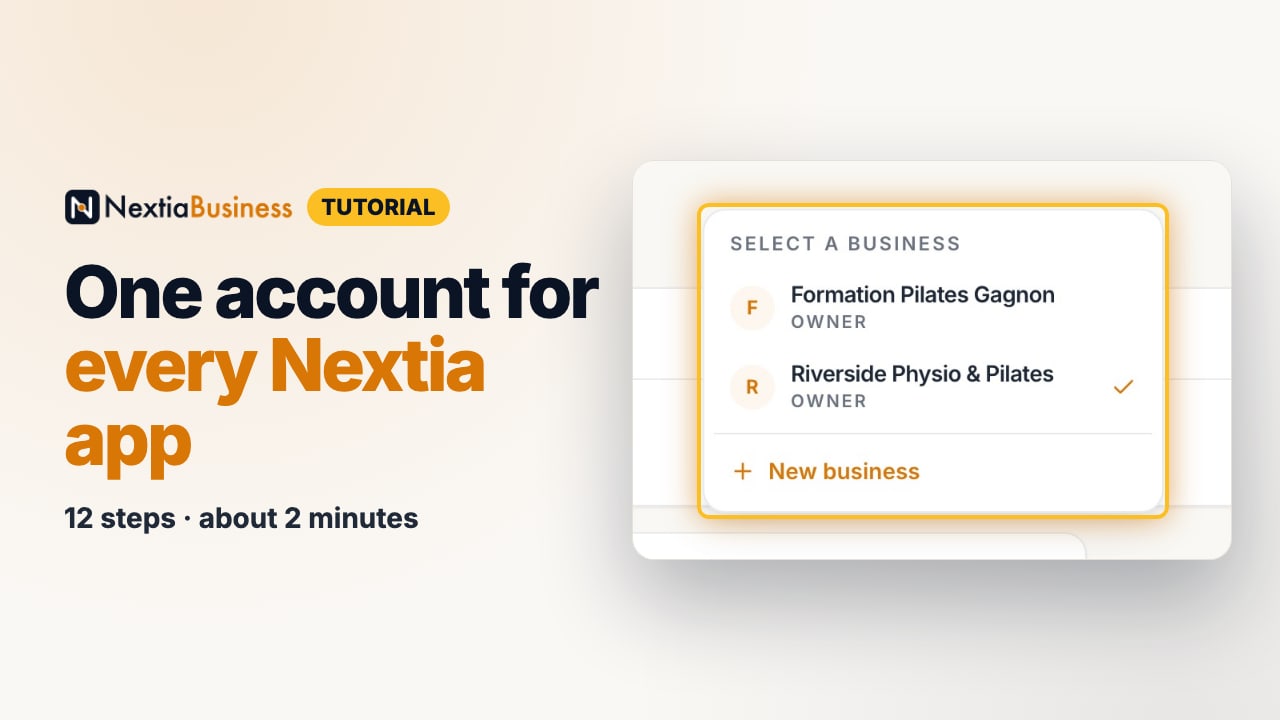
The video is on its way. The step-by-step and written versions are ready now.
- 1
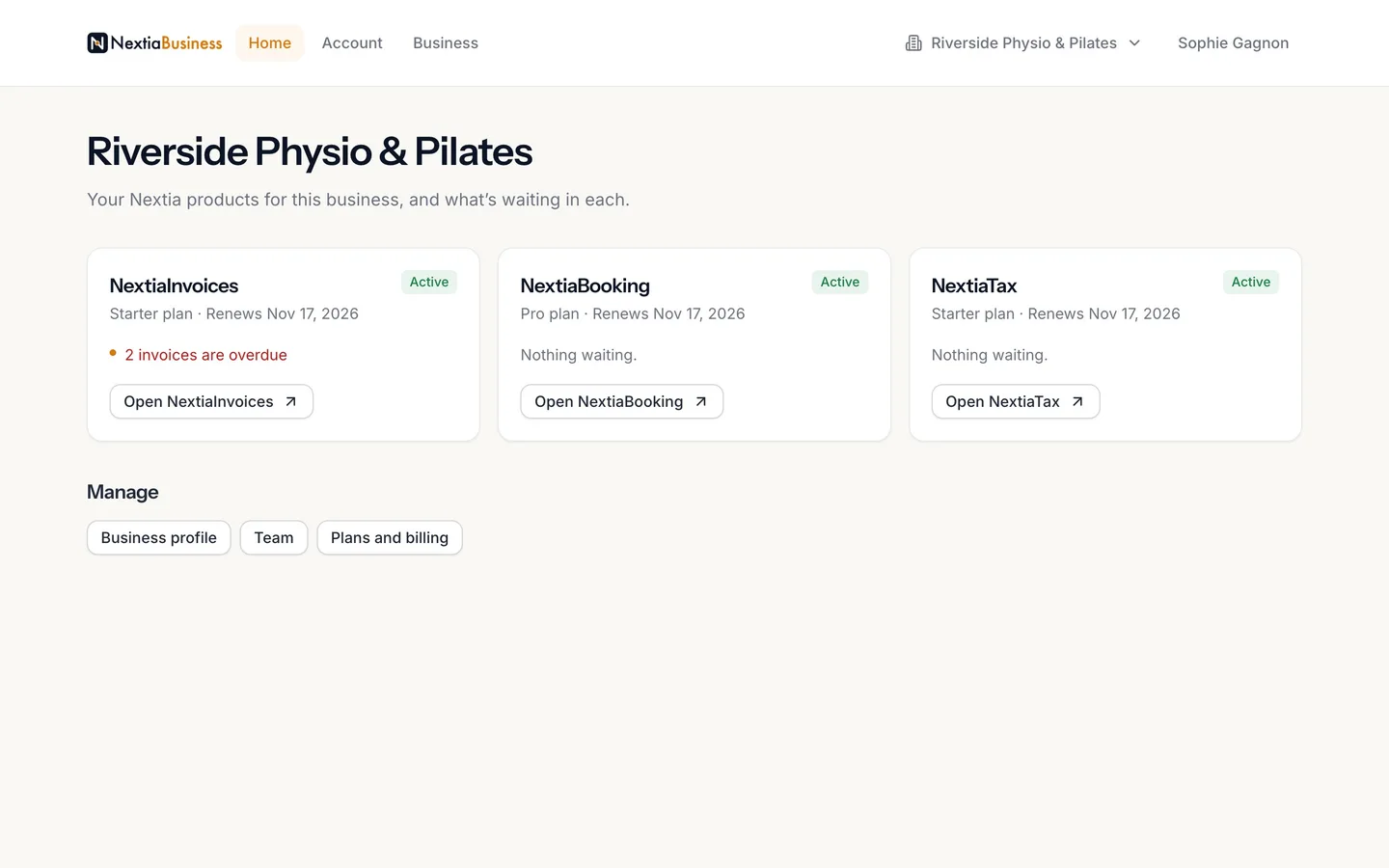
Your Home lists every Nextia app your business uses.
With its plan, and what's waiting in each.
- 2
What needs you shows on each app's card.
Here, two overdue invoices in NextiaInvoices.
- 3
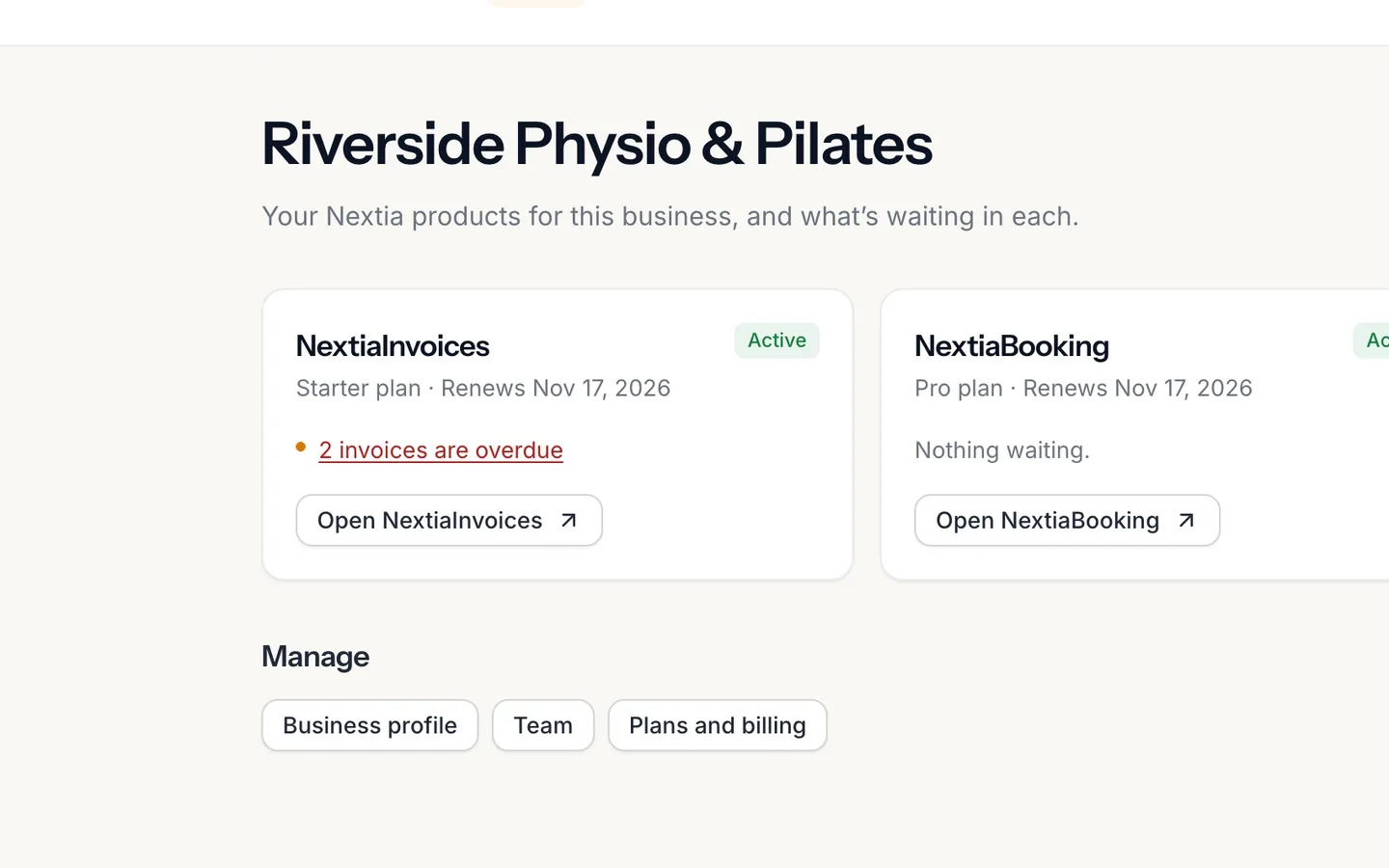
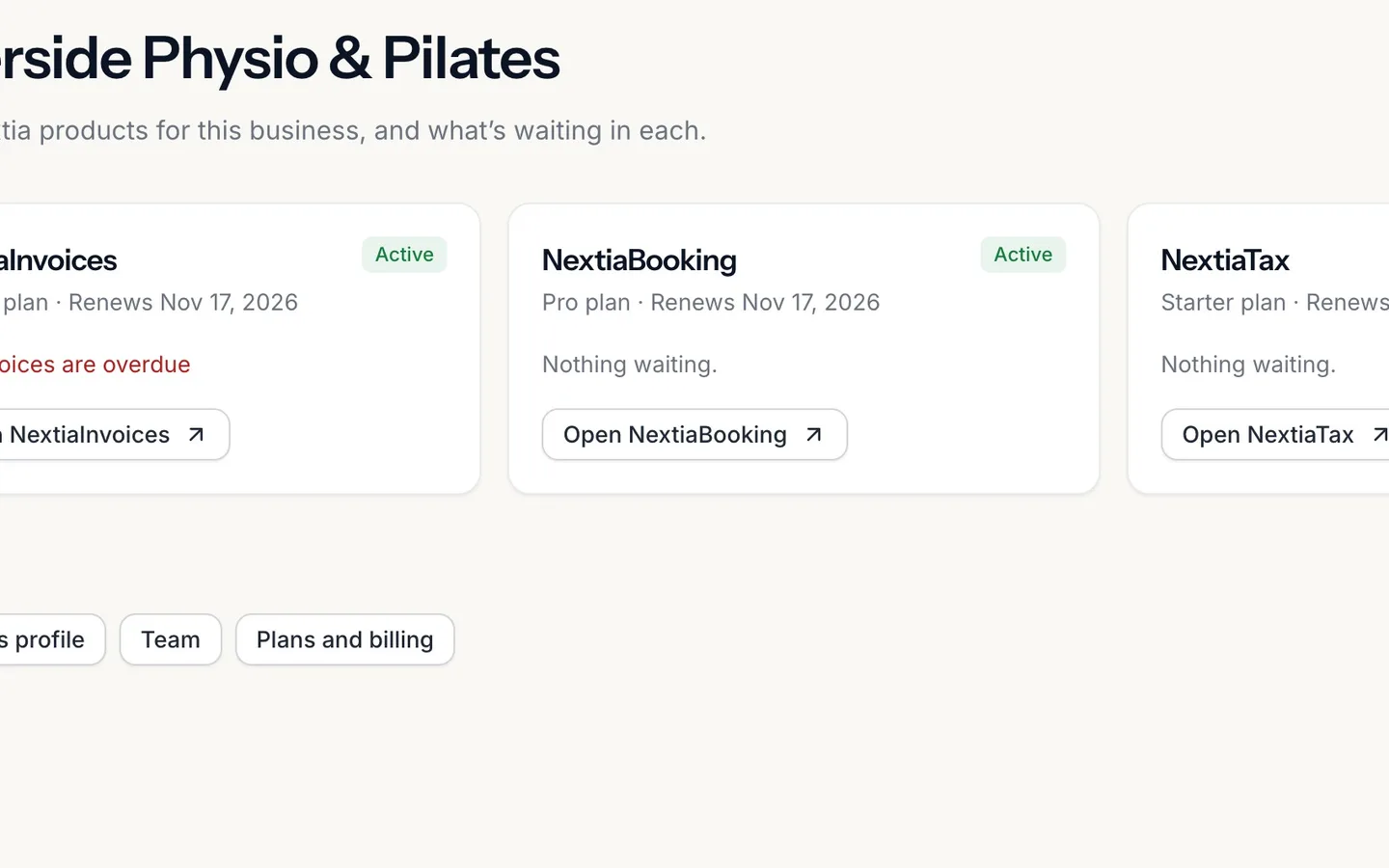
Select Open NextiaBooking.
You're already signed in: it's the same account.
- 4
It opens on the same business.
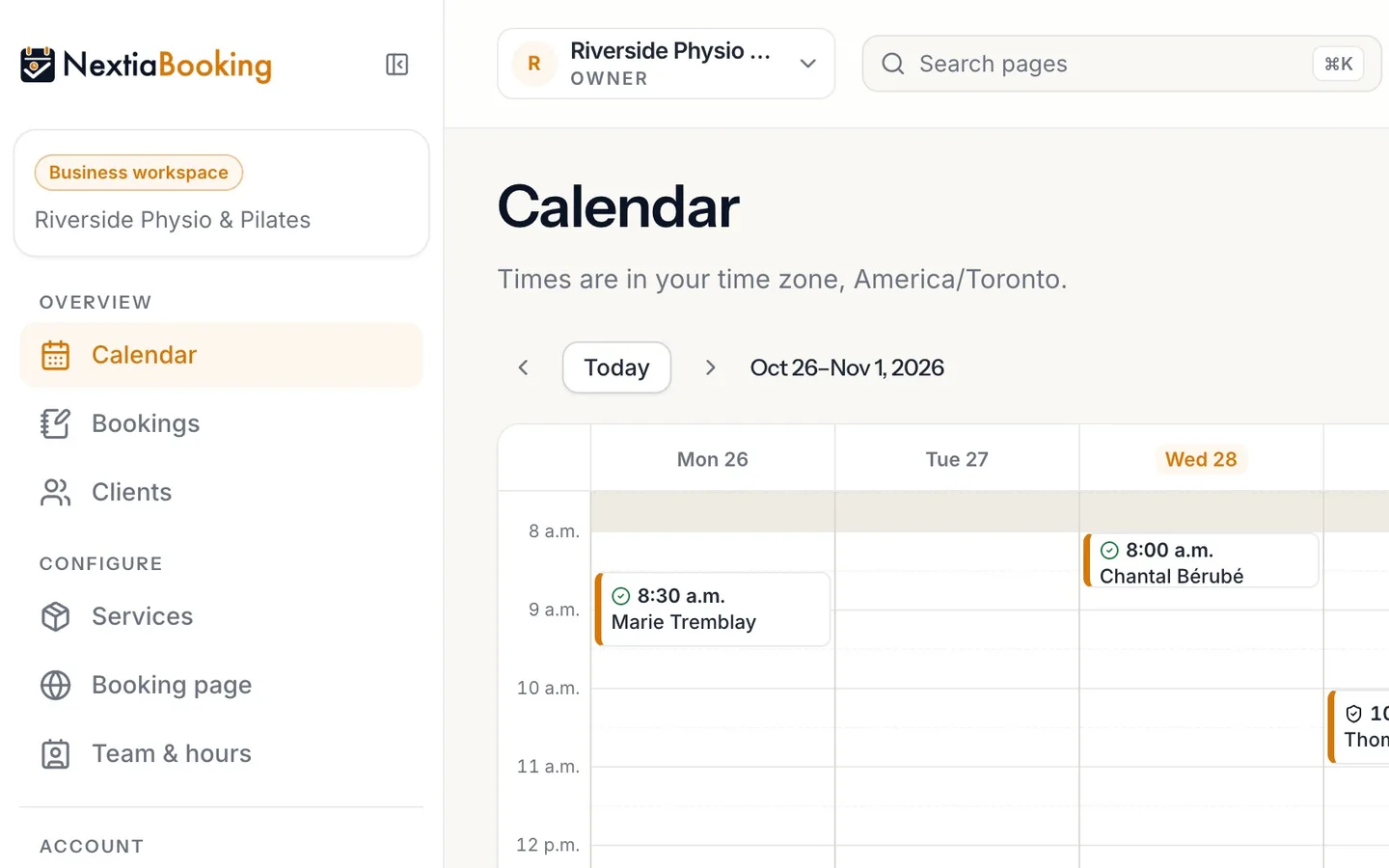
The business you're working in is named at the top of the menu.
- 5
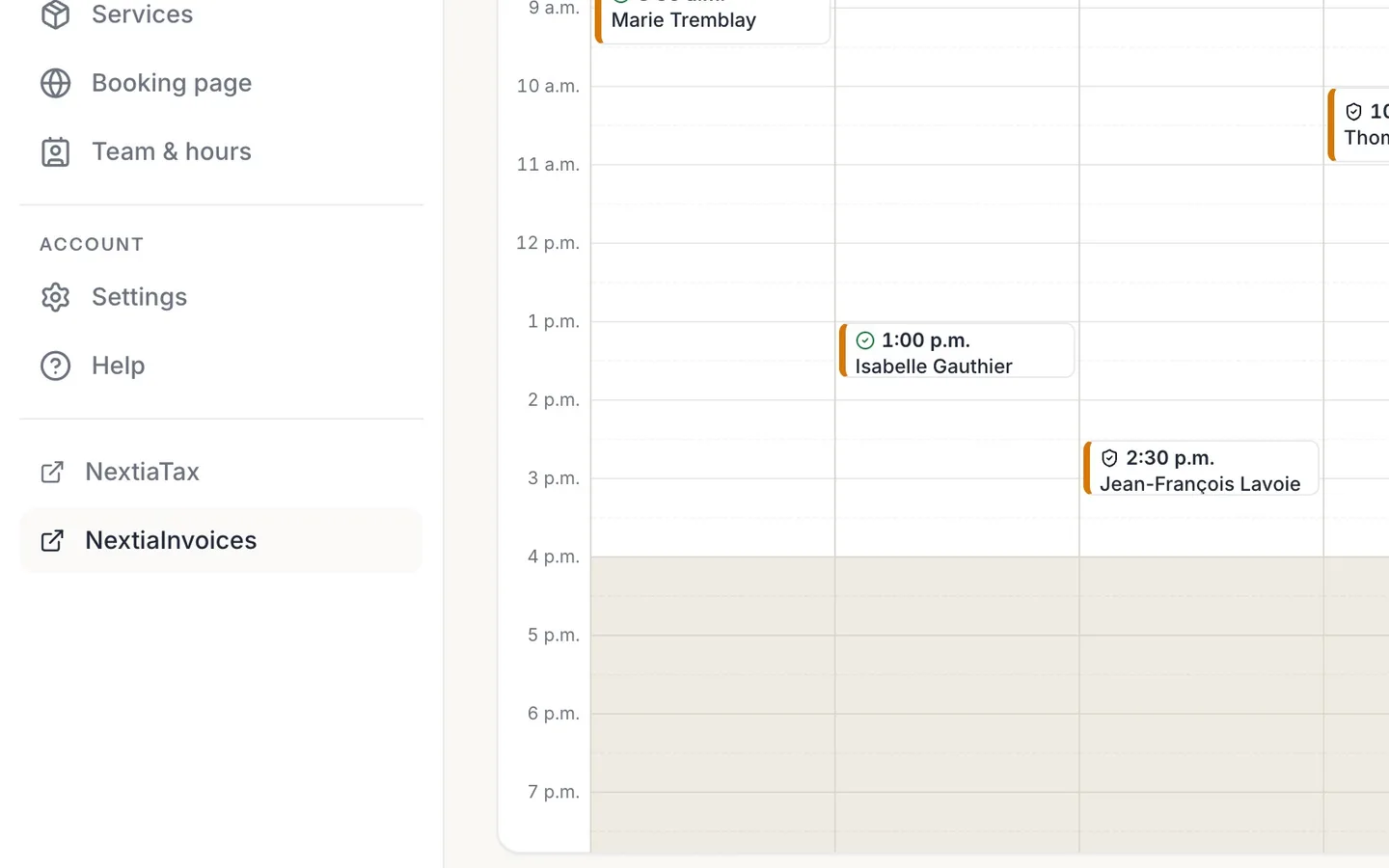
Your other Nextia apps are at the bottom of the menu.
Only the ones your business uses.
- 6
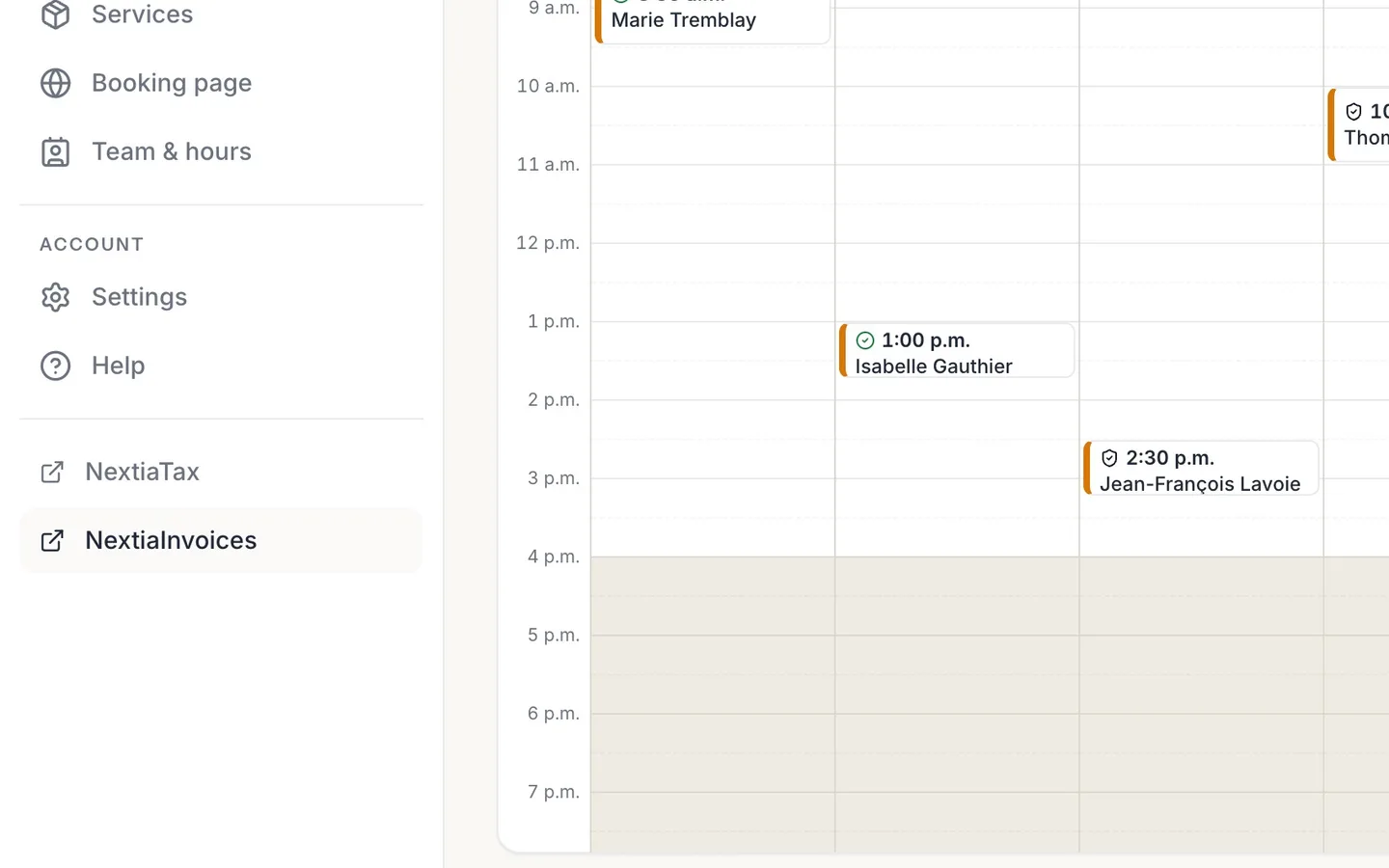
Select NextiaInvoices.
- 7
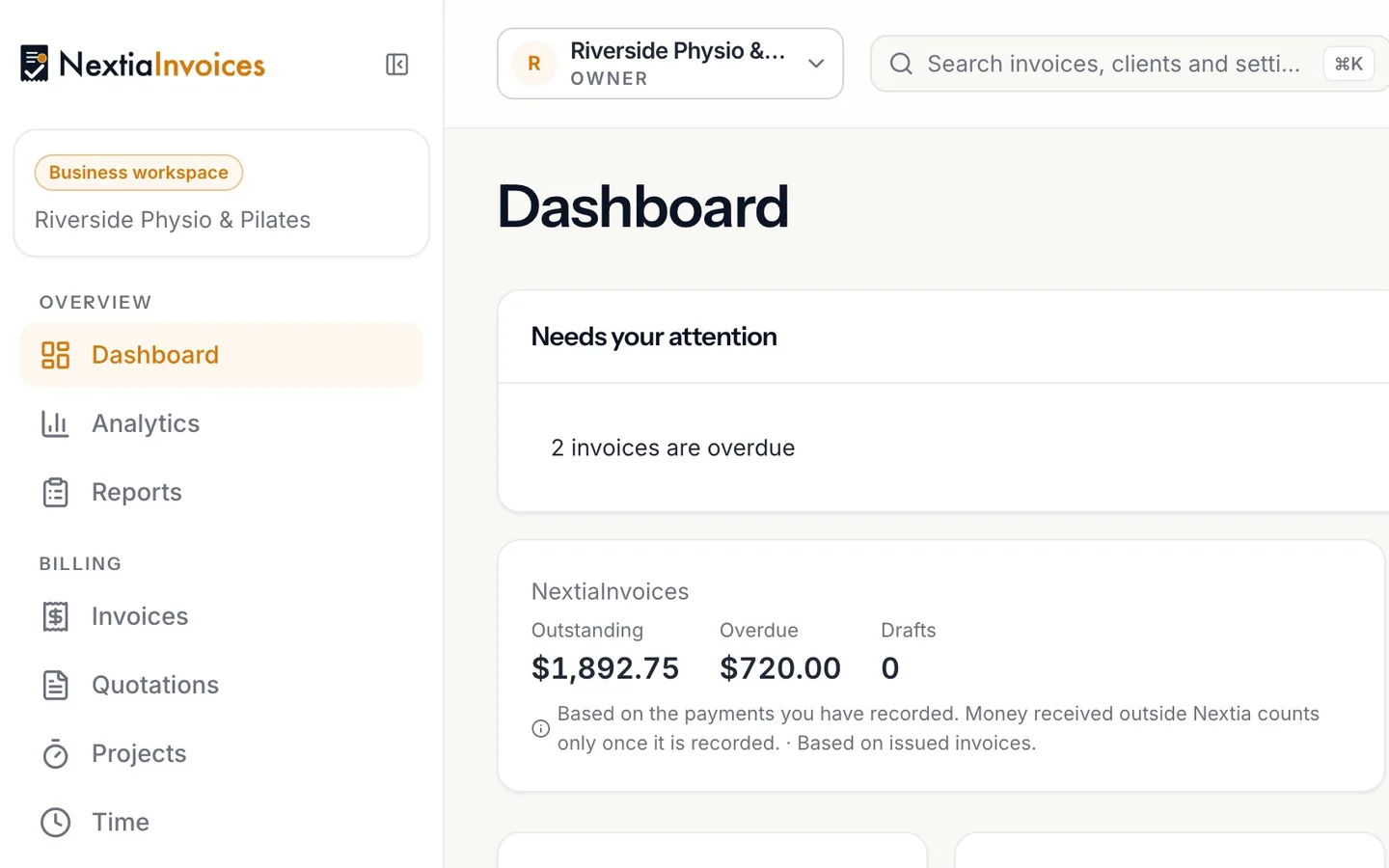
Same account, same business.
- 8
To work on another business, open the business menu at the top.
Every business you belong to is listed.
- 9
Choose the business.
Here, Formation Pilates Gagnon.
- 10
Open another app from the menu.
Here, NextiaBooking.
- 11
The business you chose follows you.
Every Nextia app opens on it, until you switch again.
One account for every Nextia app
Sign in once and move between NextiaBusiness, NextiaBooking, NextiaInvoices and NextiaTax. Switch business in one app and the others open on it.
Before you start
This guide is for anyone who works in more than one Nextia app, or in more than one business. A clinic that books clients in NextiaBooking, bills them in NextiaInvoices and keeps its books in NextiaTax uses one Nextia account for all three, and NextiaBusiness is the home that ties them together. The example is Sophie Gagnon, who runs Riverside Physio & Pilates and a second business, Formation Pilates Gagnon.
What you need:
- One Nextia account. Every app signs in with the same account. The NextiaBusiness sign-in page puts it this way: "Use the same account as NextiaTax, NextiaInvoices and NextiaBooking. If you're signed in to one of them, you're signed in here."
- A business that uses the apps. An app's link only appears for a business that has it, on a trial, a free plan or a paid plan.
- To see what's waiting in each app on your home, your role needs access to the business's analytics. Owners, admins, managers, accountants, bookkeepers and viewers have it; the Staff role doesn't.
Step by step
-
See every app your business uses on your Home
Open NextiaBusiness and sign in. Home is the first page. Its title is the name of the business you're working in, and under it: "Your Nextia products for this business, and what's waiting in each."
Each app the business uses has its own card: NextiaBooking, NextiaInvoices, NextiaTax. The card shows the plan (for example "Pro plan"), a status badge (Active, Trial, Trial ended, Payment due, Cancelled or Suspended) and one useful date, such as "Renews" and the day, "12 days left in the trial" or, for a plan that's been cancelled, the day it ends. If a plan has lapsed, the card says "Read-only until the plan is renewed."
Apps the business doesn't use yet are listed under Add a product, each with a short summary. Owners and admins see See plans, which opens billing; everyone else sees "Ask the business owner to add it." At the bottom, Manage has buttons for Business profile, Team and Plans and billing, depending on your role.
-
Check what's waiting in each app
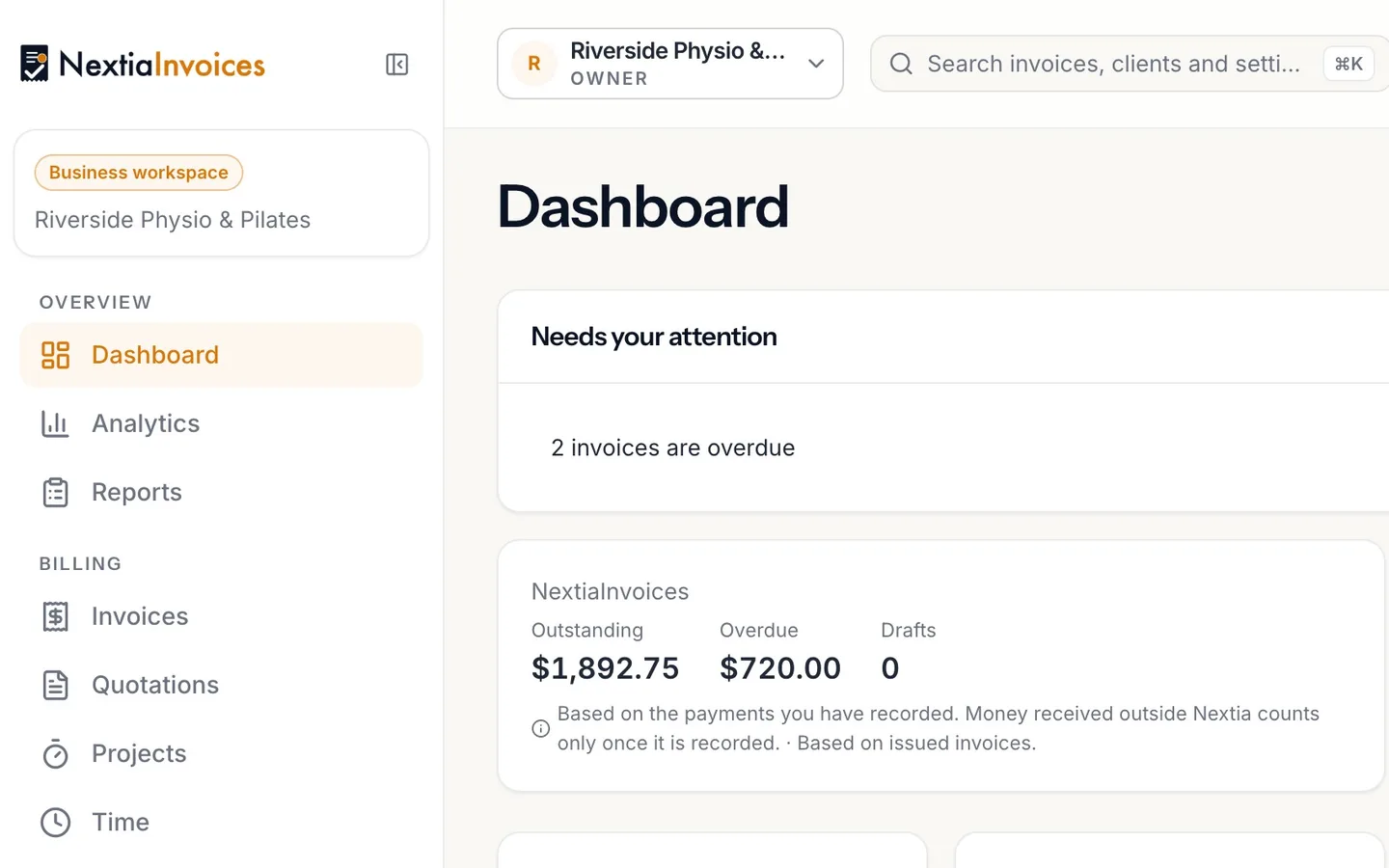
Under the plan, each card lists what needs you in that app, as a short sentence. Overdue invoices come first, then booking requests waiting for confirmation, then draft invoices waiting to be finalized. For Riverside, the NextiaInvoices card reads "2 invoices are overdue". Overdue invoices are shown in red.
Select a sentence to go straight to the list behind it. "2 invoices are overdue", for example, opens NextiaInvoices on the overdue invoices. When there's nothing to do, the card says "Nothing waiting." If an app doesn't answer in time, the card names it ("NextiaBooking didn't answer, so anything waiting there isn't shown") instead of pretending nothing is waiting.
If Interac e-Transfer deposits are waiting for a person to match them, a link such as "1 payment to review" appears above the cards.
-
Open NextiaBooking
Select Open NextiaBooking on its card. The app opens in the same tab, and you aren't asked to sign in again: it's the same account.
-
See which business you're in
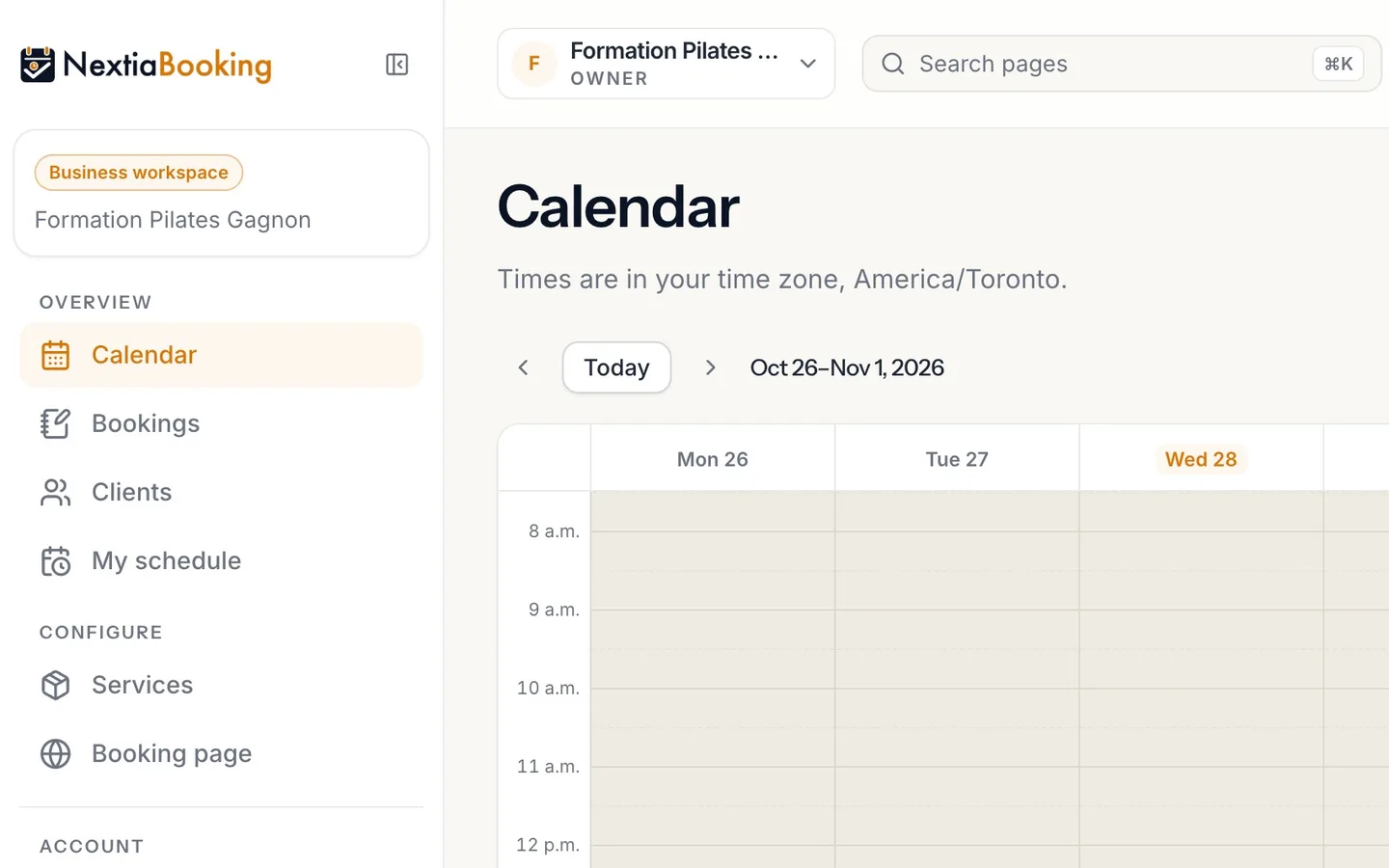
NextiaBooking opens on its Calendar, for the same business you were looking at on your home. The business you're working in is named at the top of the menu on the left, in the Business workspace card, and again in the business control at the top of the page, with your role under it (for example "Owner").
Everything on the page belongs to that business: its calendar, its clients, its services.
-
Find your other Nextia apps at the bottom of the menu
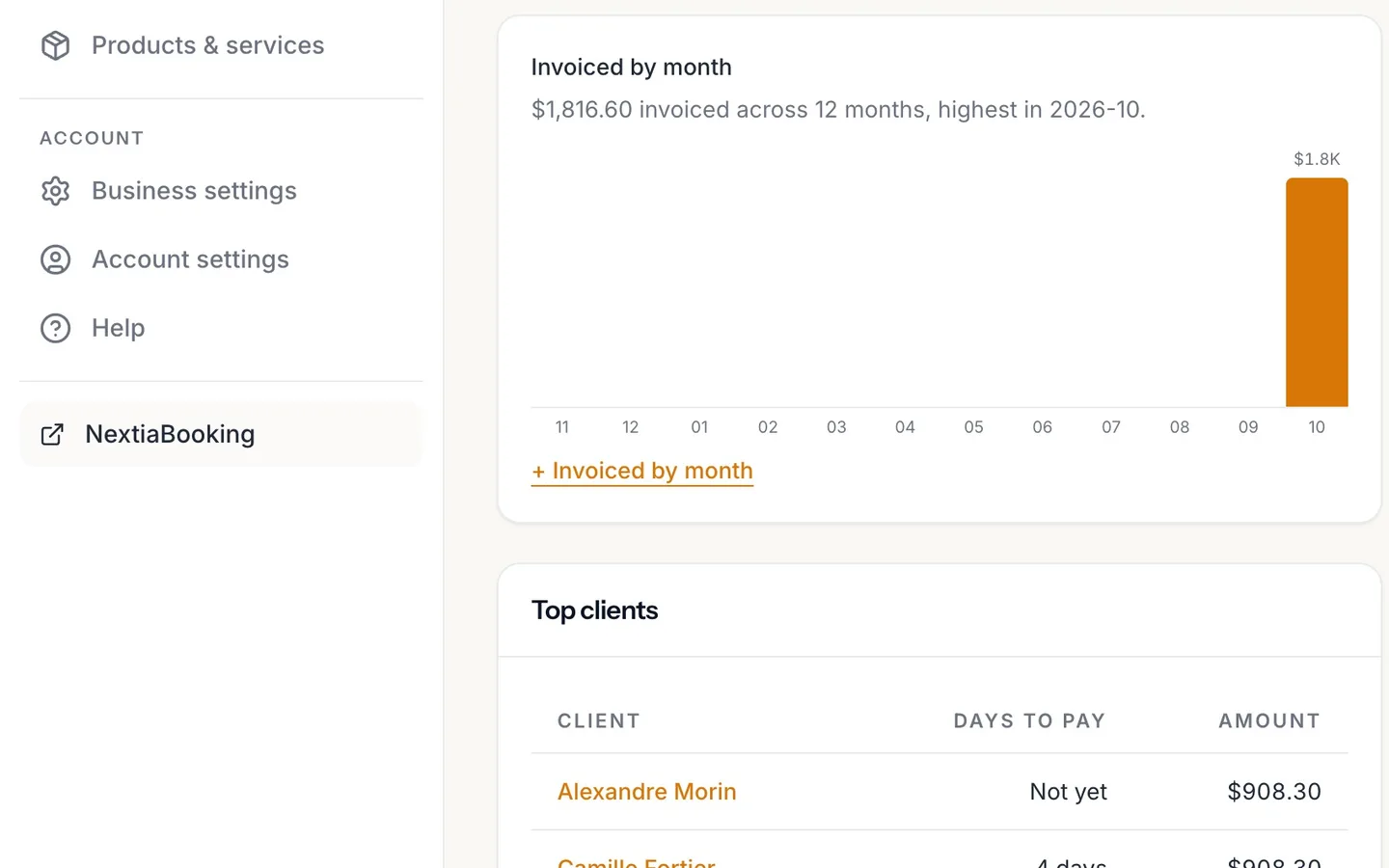
Scroll to the bottom of the menu. Under a line, NextiaBooking lists the other Nextia apps this business uses: NextiaTax and NextiaInvoices for Riverside. Only the apps the business has are listed. An app it doesn't use isn't greyed out; it isn't there at all.
When the business uses two or more Nextia apps, NextiaBusiness is listed there too, so you can always get back to your home. NextiaInvoices has the same list at the bottom of its menu, with NextiaBooking in place of NextiaInvoices.
-
Open NextiaInvoices from the menu
Select NextiaInvoices. The page loads NextiaInvoices in the same tab. There's no sign-in page in between.
-
Same account, same business
NextiaInvoices opens on the same business, Riverside Physio & Pilates, and the same two overdue invoices are there in Invoices. Nothing was copied between the apps: each one reads the same business.
-
Open the business menu to work on another business
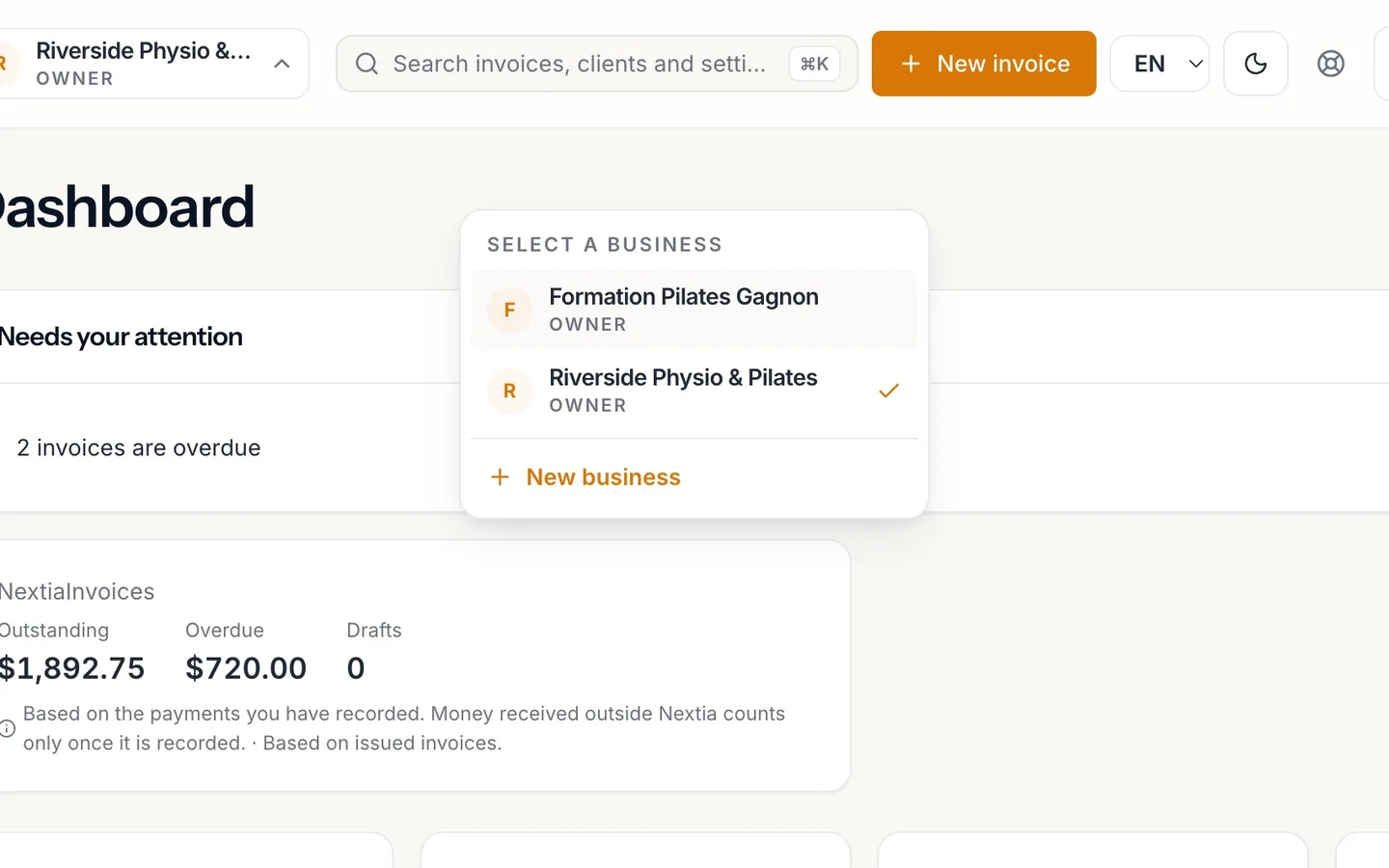
Select the business control at the top of the page to open Select a business. Every business you belong to is listed, each with your role in it, and a tick beside the one that's open. In NextiaInvoices, the menu ends with New business.
In NextiaBooking, the control is a menu only when you belong to two or more businesses. With one business, it just shows its name, since there's nothing to switch to.
-
Choose the business
Select the business you want, here Formation Pilates Gagnon. NextiaInvoices now shows that business's invoices, clients and settings.
The choice isn't kept in this app only. Choosing a business tells your Nextia account which business you're working in, and the other apps use that.
-
Open another app from the menu
Now open another app from the bottom of the menu, here NextiaBooking.
-
The business you chose follows you
NextiaBooking opens on Formation Pilates Gagnon, the business you just chose in NextiaInvoices. Every Nextia app opens on it, on the web and on the Nextia phone app, until you switch again.
A tab you already had open follows too: when you come back to it, it checks which business you're in and moves to it. If you were in the middle of typing into a form there, it waits so your input isn't lost.
What happens next
Nothing else needs setting up. Your account, your team and your clients belong to the business, not to one app, so when the business adds another Nextia app, everyone on the team can open it with the same sign-in.
To switch business from NextiaBusiness itself, use the business menu at the top of the page (Switch business). It ends with Manage businesses, which opens Your businesses: "Every business you belong to. The one you choose opens in every Nextia app." There you can Open another business or Add a business, which makes you its owner.
The usual next task is to check your business details once, in one place, so every app prints the same name and address: see business/enter-once.
If something goes wrong
An app I use isn't in the menu
The menu lists only the apps the business you're in has. Check the business named at the top: you may be in another one. If it's the right business, it doesn't use that app yet. An owner or admin can add it from Plans and billing on your NextiaBusiness home, or from See plans under Add a product.
An app opened on the wrong business
Open the business menu at the top of that app and choose the right business. The other apps follow your choice the next time they open, or when you come back to their tab.
My home shows the apps but nothing that's waiting
The list of what's waiting needs access to the business's analytics, which the Staff role doesn't have. Ask an owner or admin to change your role if you need it. If one card says the app "didn't answer", try again in a moment.
NextiaBooking shows my business's name at the top, but no menu
You belong to one business only, so NextiaBooking has nothing to offer you to switch to. Once you're invited to another business, or add one yourself, the name becomes a menu.
An app asked me to sign in again
Your session ended, for example after a long time away. Sign in with the same Nextia account; you're signed in to every app again, on the same business.
Questions
Do I need a separate account for NextiaBooking, NextiaInvoices and NextiaTax?
No. All Nextia apps use the same Nextia account. If you're signed in to one of them, you're signed in to the others, and NextiaBusiness, too.
How do I switch between my businesses in Nextia?
Open the business menu at the top of any Nextia app and choose the business. The app switches right away, and the other Nextia apps open on the same business until you switch again.
Why doesn't NextiaBusiness appear in my app's menu?
The link to NextiaBusiness appears at the bottom of the menu when the business uses two or more Nextia apps. With a single app, that app is your home.
What does the NextiaBusiness home show?
For the business you're in, it shows each Nextia app the business uses, with its plan, status and a key date, and what's waiting in each, such as overdue invoices or booking requests waiting for confirmation. It also lists apps you could add, and links to the business profile, team and billing.
Can my team use the same sign-in in every app?
Yes. Each person has their own Nextia account, and their role in the business applies in every Nextia app the business uses. Nobody needs another person's password.
How do I add another business to my Nextia account?
In NextiaBusiness, open the business menu at the top, choose Manage businesses, then Add a business. You become its owner and can invite your team next. In NextiaInvoices you can also choose New business at the bottom of the business menu.